
“Solid backgrounds are the fastest win for my product shots—no more manual cutouts for every new SKU.”
MayaE-commerce seller
PostPlus AI Background Changer is an AI-powered photo editing tool that replaces photo backgrounds in your browser. Upload an image, choose a solid color or describe a new scene, and export a clean result for product photos, headshots, and social content—without manual masking.
When you search for an AI background changer, you usually want one of three outcomes: a clean solid background for listings, a believable scene for a post, or a consistent look across a batch. This page is built for quick decisions. It tells you what inputs work best, what this AI background changer does well, and when it will struggle—so you get a usable result faster and avoid endless retries.
Change a background now
For product photos, headshots, and ID-style images, the simplest background is often the best. A good AI background changer keeps edges crisp around hair, hands, and props without halos. Start with a sharp photo where the subject is clearly separated from the original background. If you see fringing, it is usually an input issue (low resolution, compression artifacts, or low contrast)—switch to a higher-quality image or choose a more contrasting background color.
Try a solid color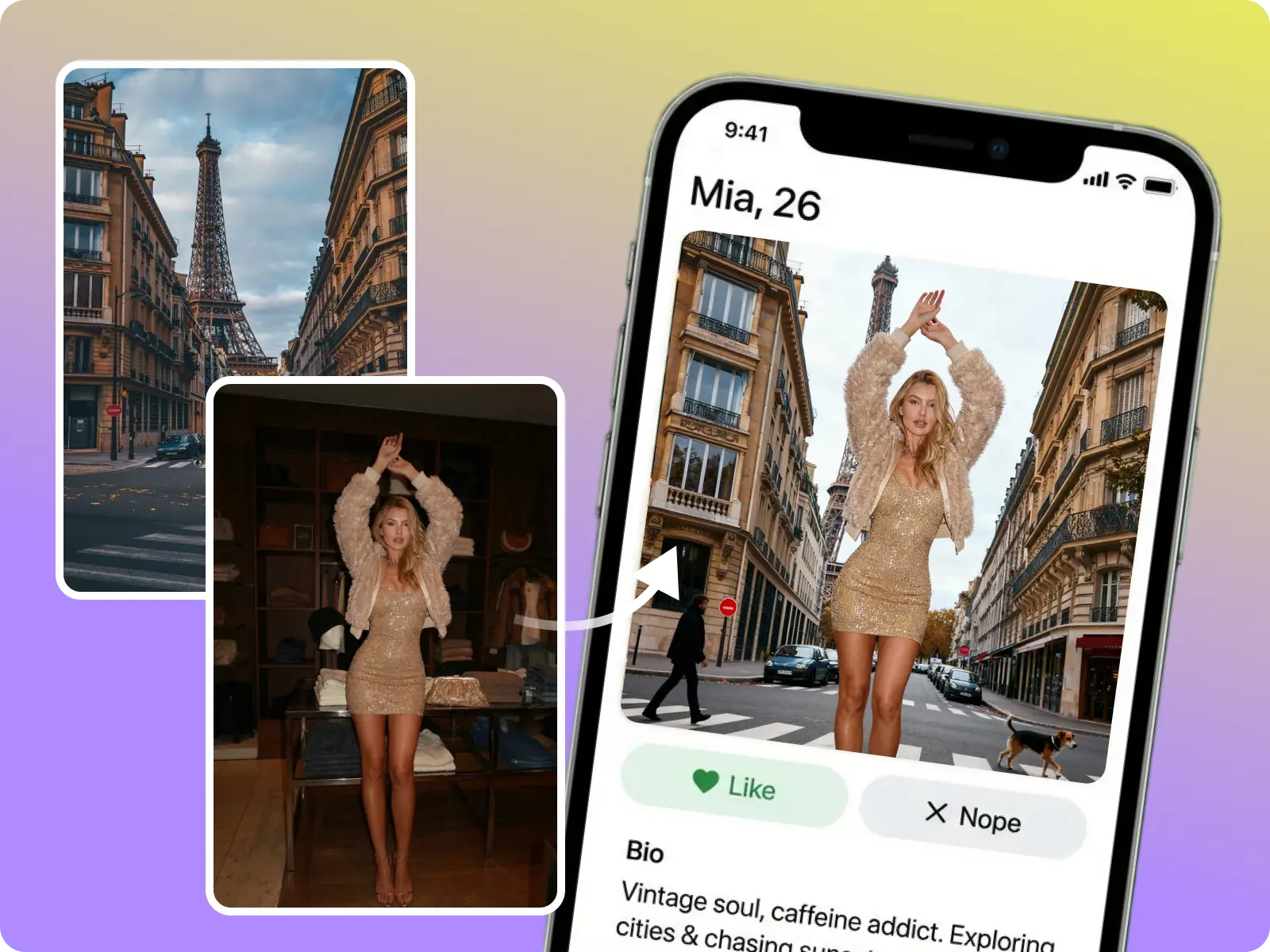
Sometimes you do not want “remove background,” you want “replace background with a specific vibe.” A prompted background is ideal for social content and campaign comps: a clean studio wall, a soft gradient, a café interior, or a seasonal theme. This AI background changer works best when your subject photo has even lighting and a neutral perspective so the new background can match the camera angle. If the result feels off, simplify the prompt and iterate on one idea (location + lighting) instead of adding extra details.
Generate a scene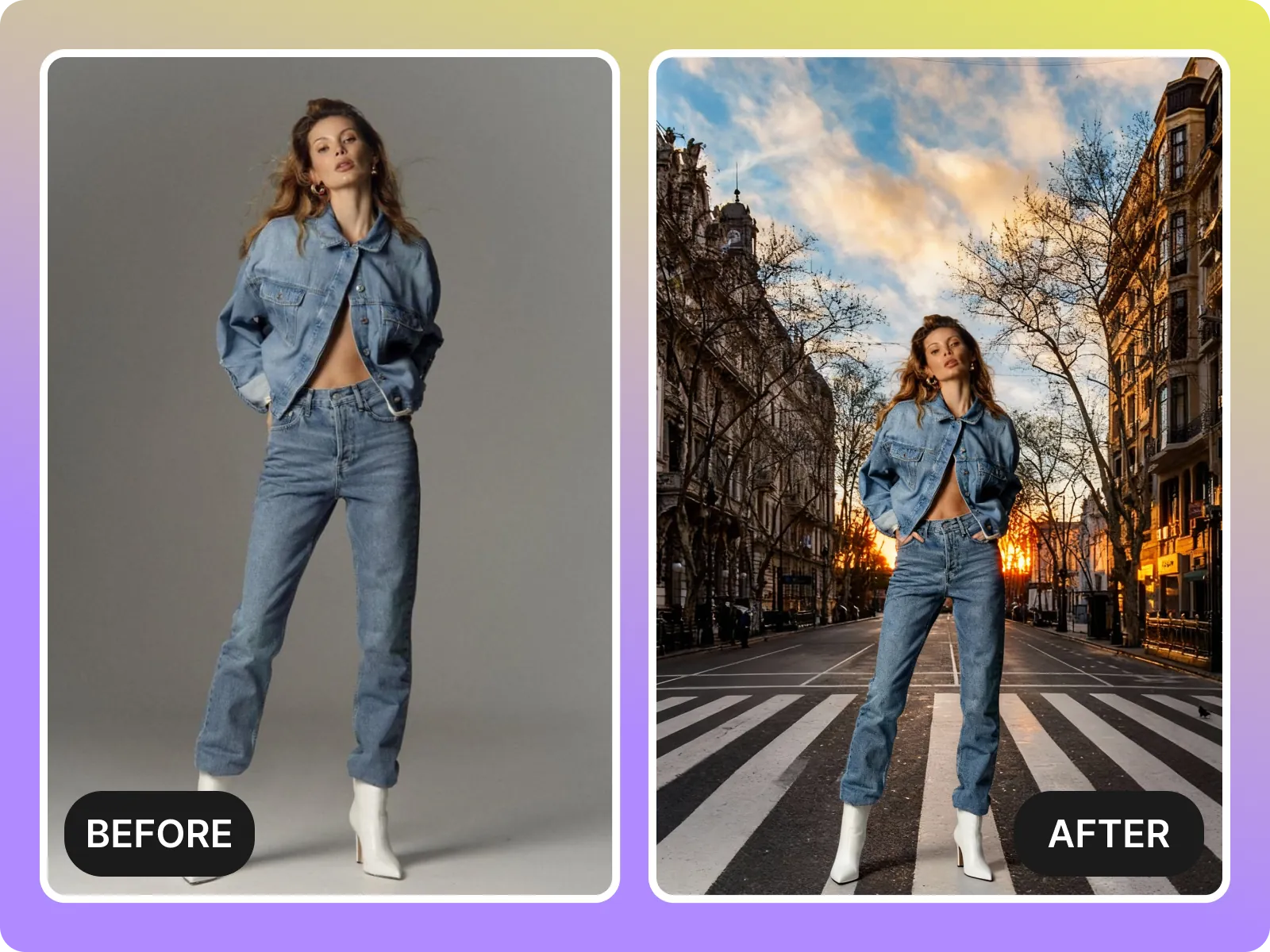
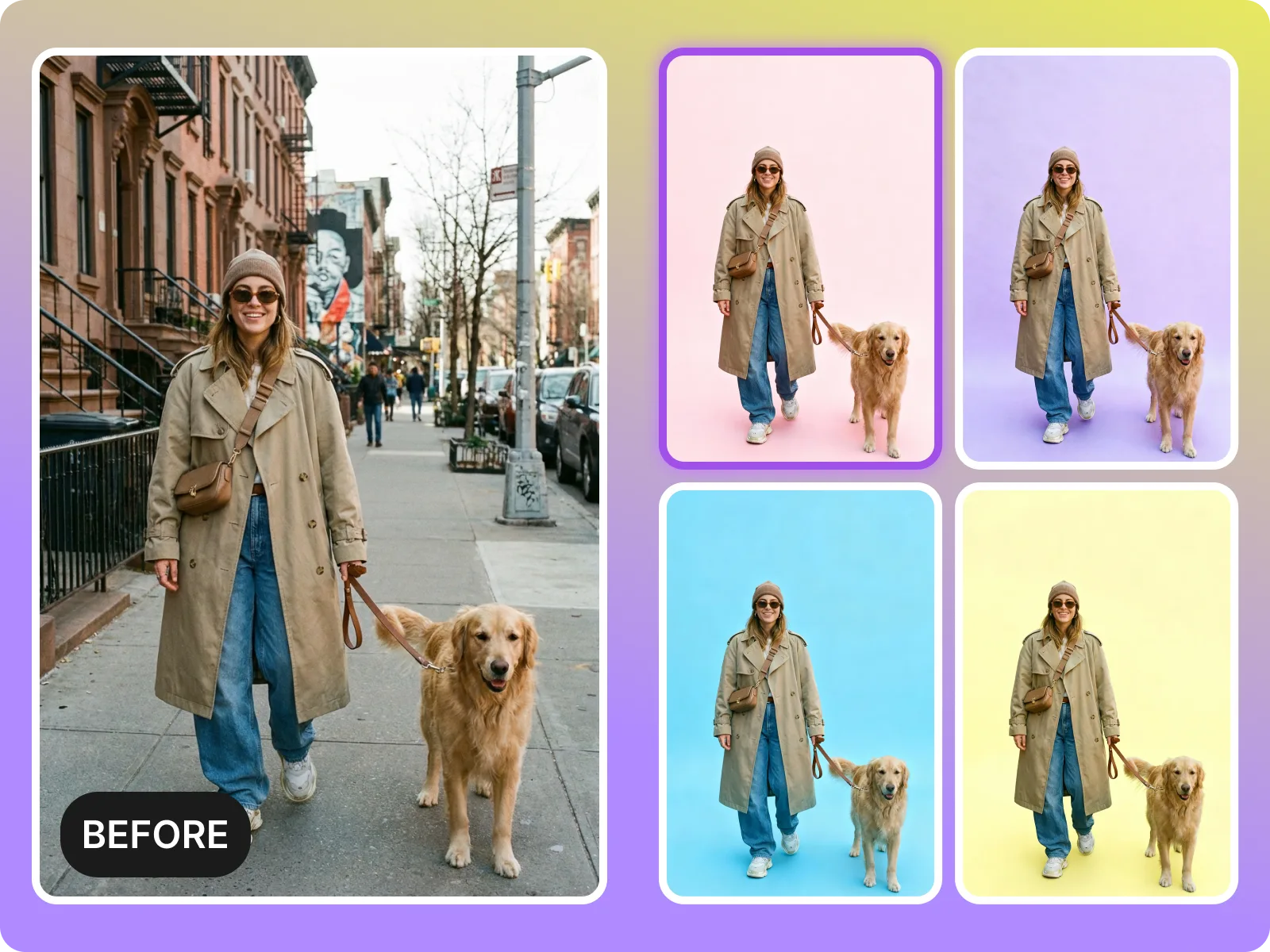
For eCommerce and creator workflows, consistency is the real time-saver. An AI background changer helps you keep a uniform look across a set: the same tone, the same “studio” feel, and the same subject scale. Standardize your inputs first—similar lighting and similar crop—then generate and export with the same size so the set looks cohesive. If you mix a dark backlit photo with a bright front-lit one, the tool can still replace the background, but the batch will not match.
Make a consistent set
This AI background changer is great for fast swaps, but it is not ideal for every edge case. Extremely messy hair, transparent objects, motion blur, low-light noise, or subjects that blend into the original background can reduce cutout quality. It also will not fix bad subject lighting—if the new background is bright but the subject is dark, the composite can feel unnatural. For pixel-perfect print compositing or complex reflections, you may still prefer a dedicated editor.
Try a realistic swapUpload your photo
Pick a clear image where the subject is easy to separate: sharp focus, visible edges, and decent lighting. The AI background changer starts by detecting the subject boundary. If your photo is small, heavily compressed, or backlit, start with a higher-quality version to reduce halos and jagged edges.
Choose a background style
Decide what you need: a solid color for listings and headshots, or a described scene for creative posts. Keep it simple at first—one idea with a clear lighting direction. If the subject looks out of place, simplify the prompt or choose a background style that matches the original camera angle.
Generate and export
Generate the result and check the hard areas: hairline, shoulders, hands, and product edges. If you see a halo, try a higher-contrast background color or a cleaner input image. Once it looks clean, export the result for your store, socials, or campaign drafts.
Upload a photo, choose a solid color or describe a new scene, and generate a clean cutout with a replaced background. Use this AI background changer for product images, profile pictures, and fast creative concepts.
Try the background changerA clean background swap starts with a clean photo. Sharp focus, visible boundaries, and even lighting help this AI background changer avoid halos around hair and shoulders. If the subject blends into the original background, choose a higher-contrast shot for more reliable cutouts.
Upload a clearer photoUse the AI background changer for product listings, headshots, social posts, and campaign drafts. It helps you get to a usable result faster than manual masking, especially when you need multiple variations or a consistent look across a set.
Create variationsGreat for clear subjects and fast background swaps. Not ideal for heavy motion blur, very low resolution, complex transparency, or pixel-perfect print composites. Use this AI background changer to decide quickly, then switch approaches when the limits matter.
Try a realistic use caseMost visitors want speed and cleanliness: a background that looks intentional, edges that do not distract, and exports that are ready for a listing or a post. This AI background changer page focuses on practical guidance—how to choose better inputs, how to pick the right background style, and when to stop iterating and change the plan.
“Solid backgrounds are the fastest win for my product shots—no more manual cutouts for every new SKU.”
“Consistency matters for storefront grids. Using the same background style makes everything look more professional.”
“I like that it tells you when not to use it—some images really do need manual retouching.”
“Solid backgrounds are the fastest win for my product shots—no more manual cutouts for every new SKU.”
“Consistency matters for storefront grids. Using the same background style makes everything look more professional.”
“I like that it tells you when not to use it—some images really do need manual retouching.”
“The “check hairline and shoulders” tip helped me fix halos by changing the input photo instead of tweaking forever.”
“I use it for quick headshot cleanup—swap to a neutral background and export without opening an editor.”
“Fast variations help our team pick a direction, then we do final polish only on the chosen option.”
“The “check hairline and shoulders” tip helped me fix halos by changing the input photo instead of tweaking forever.”
“I use it for quick headshot cleanup—swap to a neutral background and export without opening an editor.”
“Fast variations help our team pick a direction, then we do final polish only on the chosen option.”
“Prompted scenes are perfect for concept posts. I can test a vibe in minutes before planning a full shoot.”
“When a photo is backlit, it looks off. The page saved me time by setting that expectation clearly.”
“Export-ready results make approvals easier. I can share a clean mockup in our chat within minutes.”
“Prompted scenes are perfect for concept posts. I can test a vibe in minutes before planning a full shoot.”
“When a photo is backlit, it looks off. The page saved me time by setting that expectation clearly.”
“Export-ready results make approvals easier. I can share a clean mockup in our chat within minutes.”
PostPlus AI Background Changer is an AI-powered photo editing tool that replaces photo backgrounds in your browser. Upload an image, choose a solid color or describe a new scene, and export a clean result for product photos, headshots, and social content—without manual masking.
Drag & drop Image here