
Quickstart
Connect PostPlus to ChatGPT, Claude, or another MCP client and run your first ad library search.
On this page
https://mcp.postplus.io/mcpSign in with your PostPlus account and choose the workspace you want to connect. The OAuth connection requires no API key.
Connect to ChatGPT
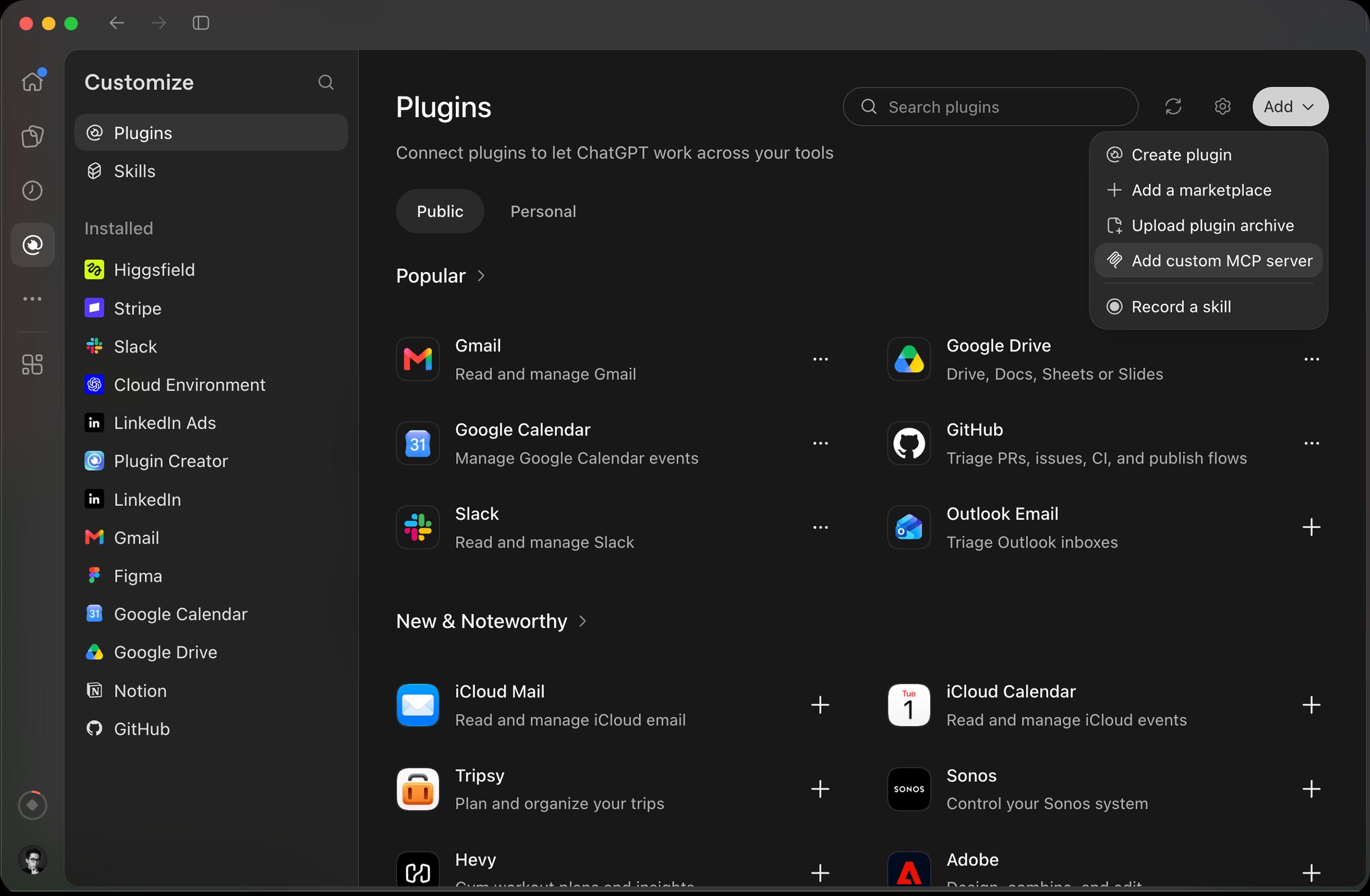
- Open ChatGPT Plugins. Select Add, then Add custom MCP server.
- Name the connection PostPlus, paste the server URL above, and choose OAuth. Sign in to PostPlus and authorize the connection.
- Start a chat and type
@to select PostPlus.
See the ChatGPT setup screen
Connect to Claude
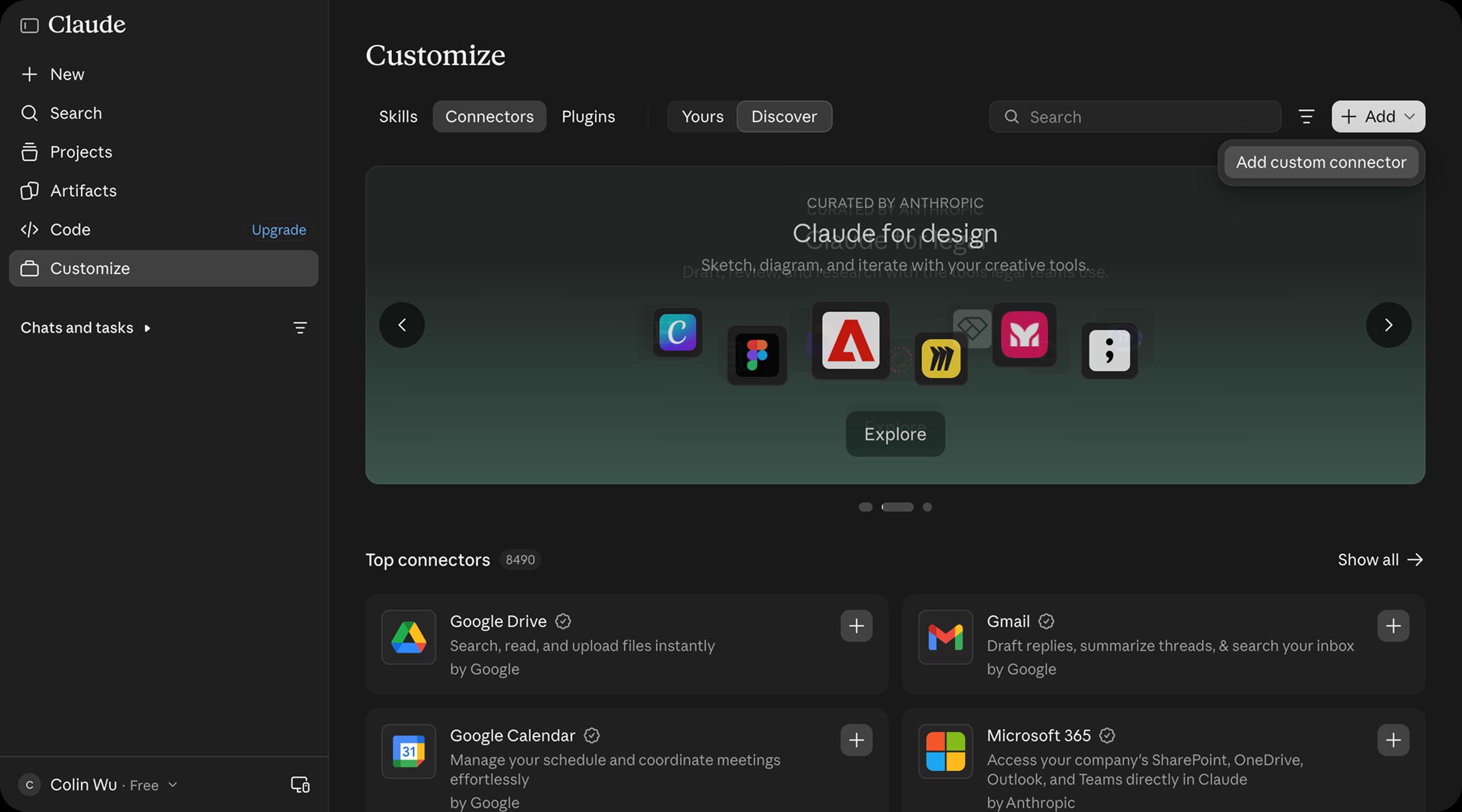
- Open Claude Connectors. The browser link prefills the name and server URL. In the desktop app, go to Customize, select Connectors, and add a custom connector with the same URL.
- Sign in to PostPlus and authorize the connection.
- Start a chat with the connector enabled and try a prompt below.
See the Claude setup screen
Other MCP clients
Add the URL above as a remote HTTP MCP server in a client that supports OAuth with dynamic client registration. Complete the PostPlus sign-in in your browser.
Try your first search
Use PostPlus to find five Canva ads in the stored Meta ad library. Open the results and summarize the formats and calls to action you can verify from the ads. Use stored ads only.
Your assistant can search the saved Meta catalog and return matching ads with source links. Clients that support MCP Apps can display an interactive gallery.
Continue with more example prompts or browse the tool reference.
Troubleshooting
- If the custom server option is missing, check whether your client or workspace administrator allows custom MCP connections.
- If tools changed after connecting, use your client’s refresh option where available, then select PostPlus in a new chat.