
Tutorials
English · Guide
How to Generate AI Video Assets and Stitch Clips with PostPlus
A production workflow for turning an approved script into reference frames, AI images, generated video clips, and a simple stitched short-form edit.
English · Guide
A production workflow for turning an approved script into reference frames, AI images, generated video clips, and a simple stitched short-form edit.
Generating AI video assets works best when the team starts from an approved script, extracts useful reference frames, creates image assets for each beat, generates short video clips, and then stitches those clips in a lightweight editor. PostPlus turns that process into a structured workflow instead of a sequence of disconnected prompts.
PostPlus is a short-form marketing workflow for local AI agents. It helps teams move from script to reference frames, batch image generation, batch video generation, and final edit planning.
AI video asset generation should start only after the script is approved. In the PostPlus workflow, the script defines the number of visual beats, reference images, generated clips, durations, and final edit order, so production can move from AI video scriptwriting into controlled batch generation.
The script is the source of truth for the asset plan. If the script has seven voiceover beats, the asset plan should define seven corresponding visual beats. If the script is not approved, do not start generating final assets.
Use this simple production rule:
| Script Decision | Asset Decision |
|---|---|
| Number of voiceover beats | Number of images or video clips needed. |
| Duration of each line | Approximate clip length. |
| Character or product role | Main visual subject. |
| Proof or demonstration | Required action or scene. |
| CTA | Final product frame or offer frame. |
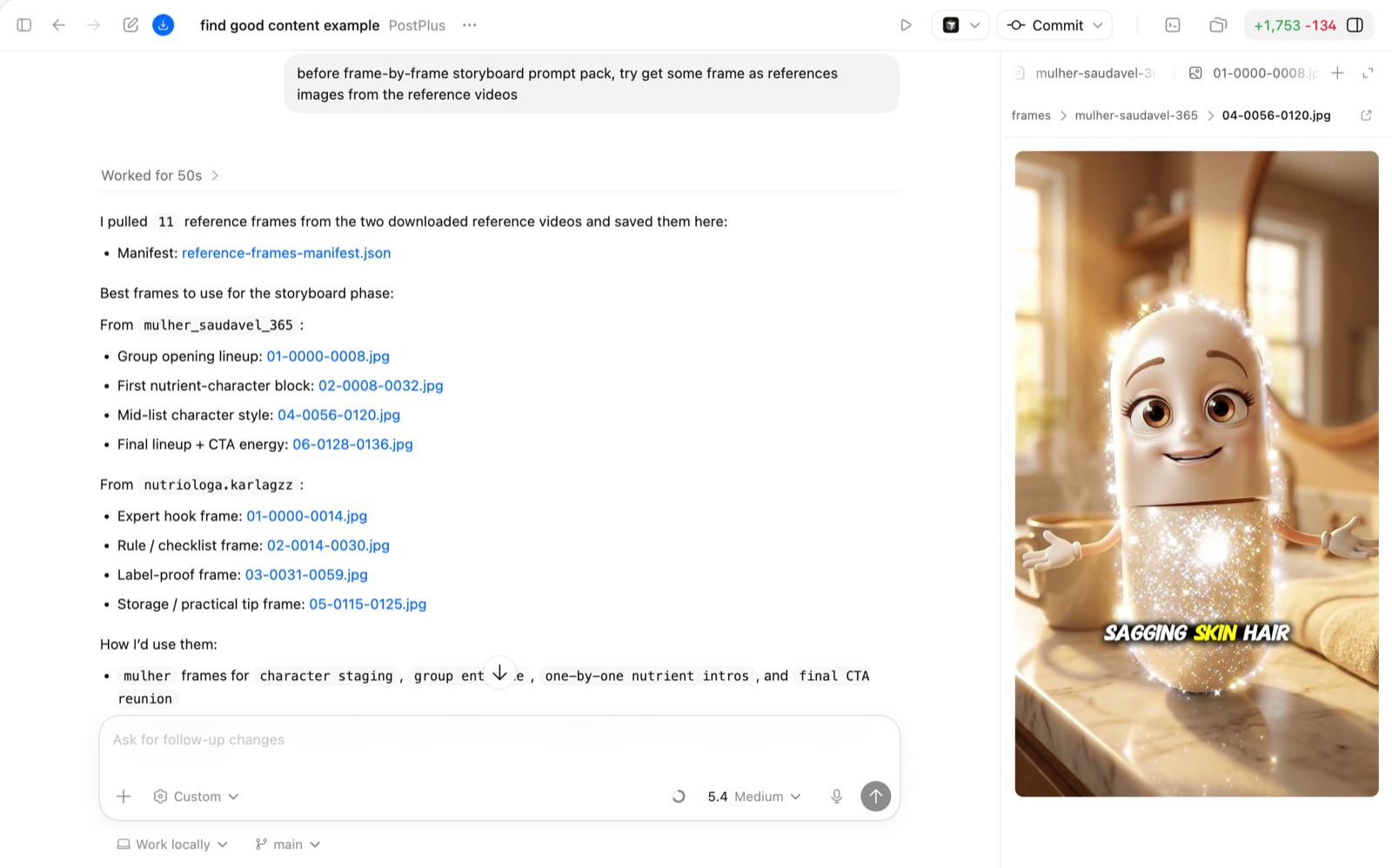
AI image and video generation usually performs better when it has real visual references. If you have a benchmark video, ask PostPlus to extract useful frames.
Try to get some frames as reference images from the reference videos.
The goal is not to copy the reference frame. The goal is to capture visual cues: framing, character style, scene composition, lighting, product placement, or pacing.
Once the script and reference frames are ready, create one image direction per beat. For example, a seven-beat recovery-nutrient video needs seven image concepts that match the voiceover.
We need a total of 7 AI-generated videos, each corresponding to the following VOs:

1. Women athletes: these are 5 recovery nutrients you should not ignore.
2. I am omega-3. I help support recovery, soreness, and inflammation after training.
3. I am vitamin D. I support muscles, bones, and staying strong through hard training blocks.
4. I am magnesium. I help with muscle function, relaxation, and better recovery at night.
5. I am protein. I help repair muscle tissue after training so your body can rebuild.
6. I am iron. I help support energy and endurance when training takes a lot out of you.
7. If your recovery stack is missing omega-3, fish oil is one of the easiest places to start.

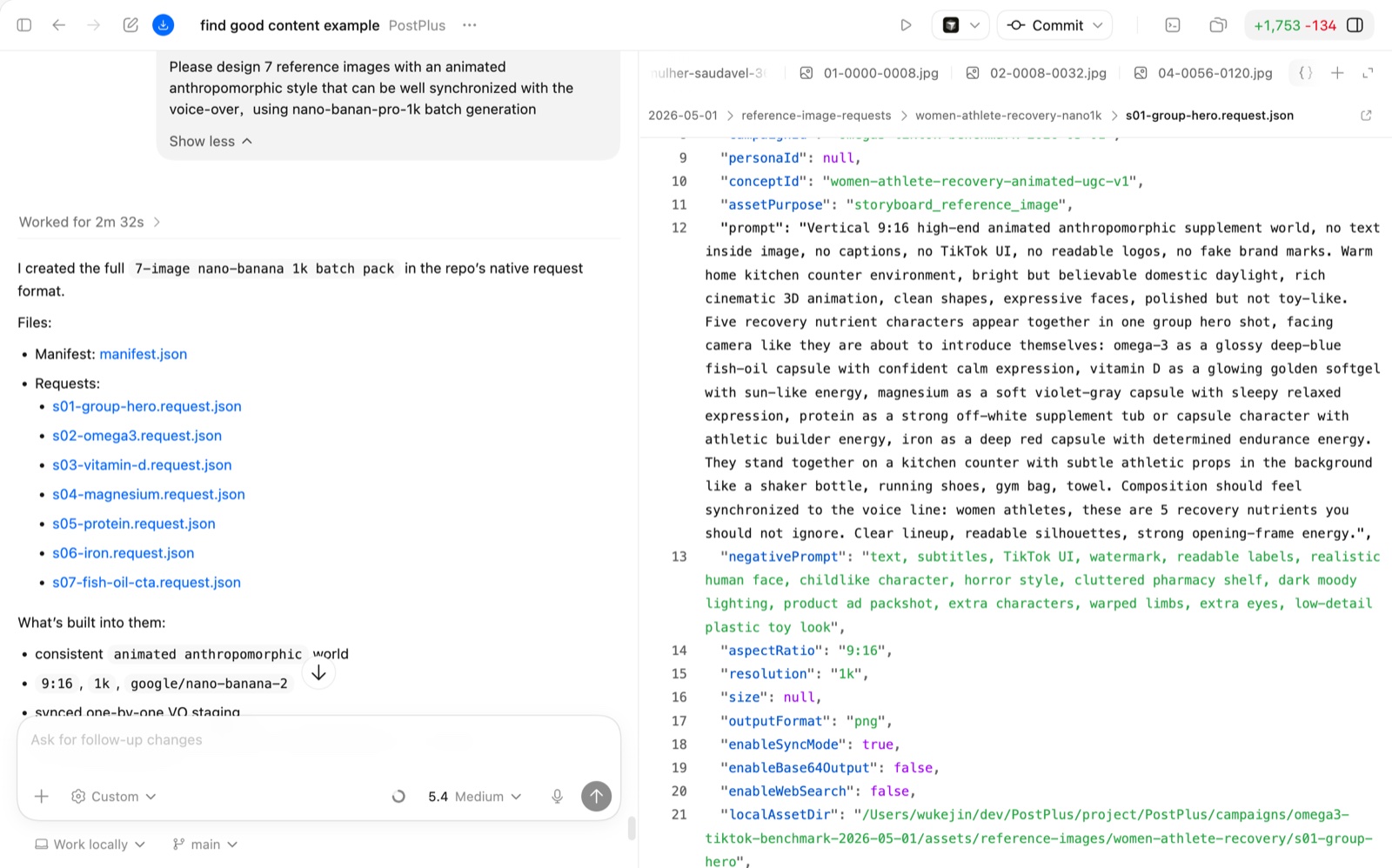
Please design 7 reference images with an animated anthropomorphic style that can be synchronized with the voiceover.
Use batch image generation.
PostPlus image-batch skills can draft the image prompts in batches, so the operator reviews structured requests instead of writing every prompt manually.
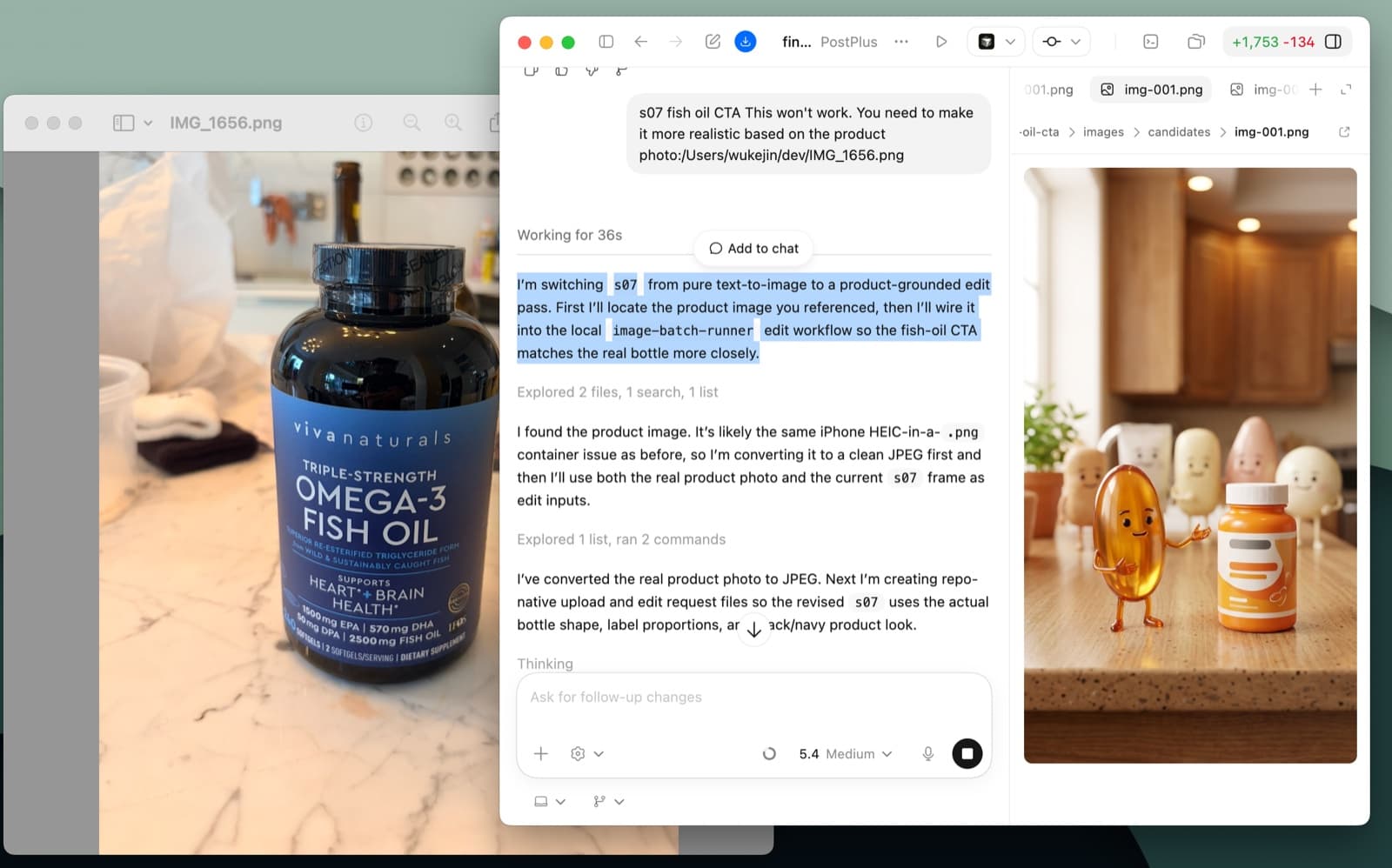
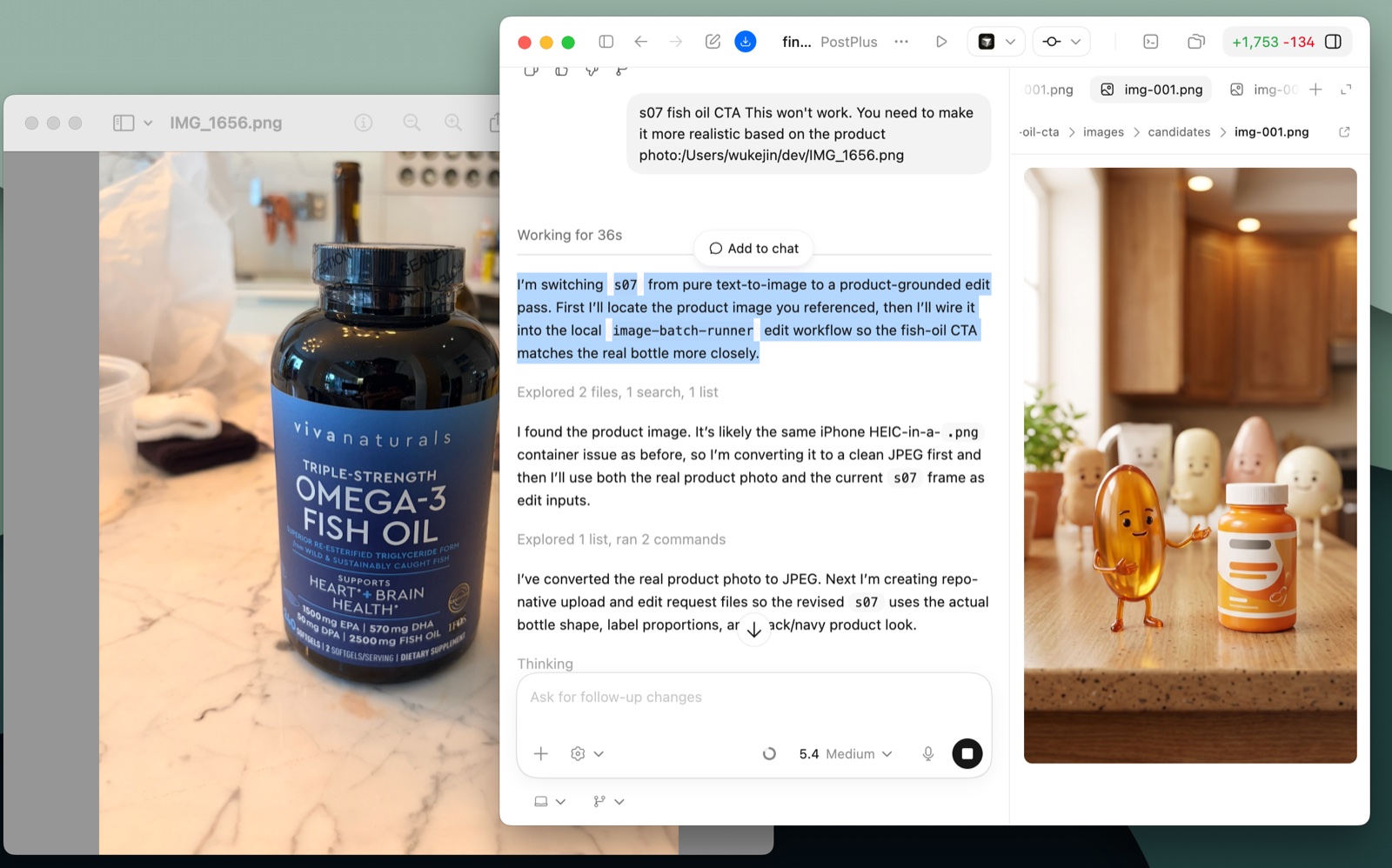
Generated assets should be treated as production candidates, not final truth. If a CTA frame changes the product, if a character no longer matches the brand, or if the image no longer supports the line, regenerate that beat.
Review each image against:
This review step is cheaper than discovering the mismatch after video generation.
After images pass review, use PostPlus video generation skills to create clips. The default workflow can use Seedance 2.0, but the important design choice is not the model name. The important choice is batch structure: one clip per beat, each with a clear prompt, duration, and visual target.
The request should include:
| Field | Purpose |
|---|---|
| Source image | Keeps each clip visually grounded. |
| Voiceover beat | Keeps motion aligned with the script. |
| Duration | Prevents clip timing drift. |
| Motion direction | Defines what should change inside the shot. |
| Negative constraints | Blocks unwanted product, character, or style changes. |
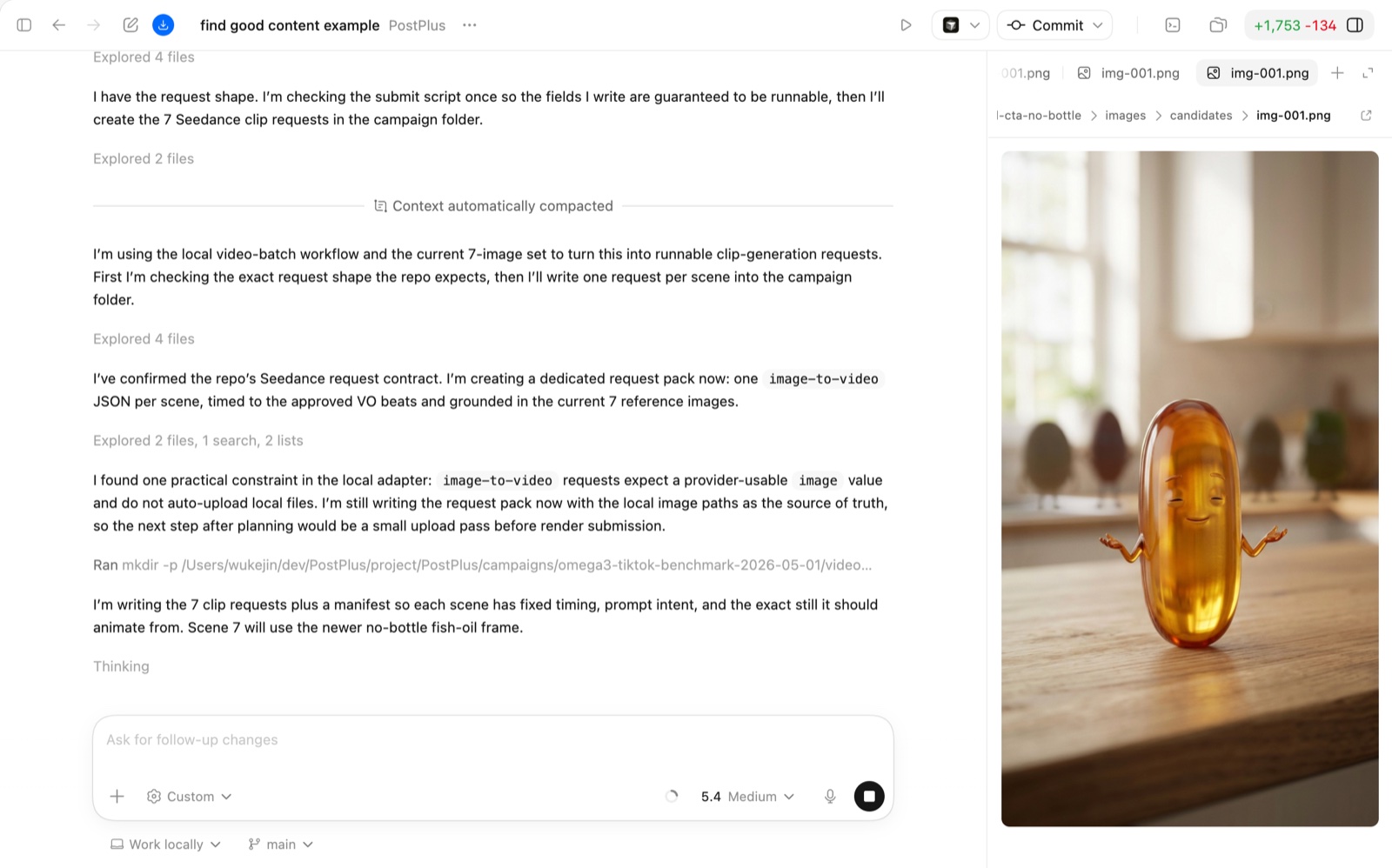
When the clips are ready, stitch them in a simple editor such as CapCut. The edit does not need to be complex if the script and clip plan are already aligned.
The minimum edit package is:
PostPlus reduces the repetitive work before editing. The operator still needs to make judgment calls on timing, captions, and final polish.
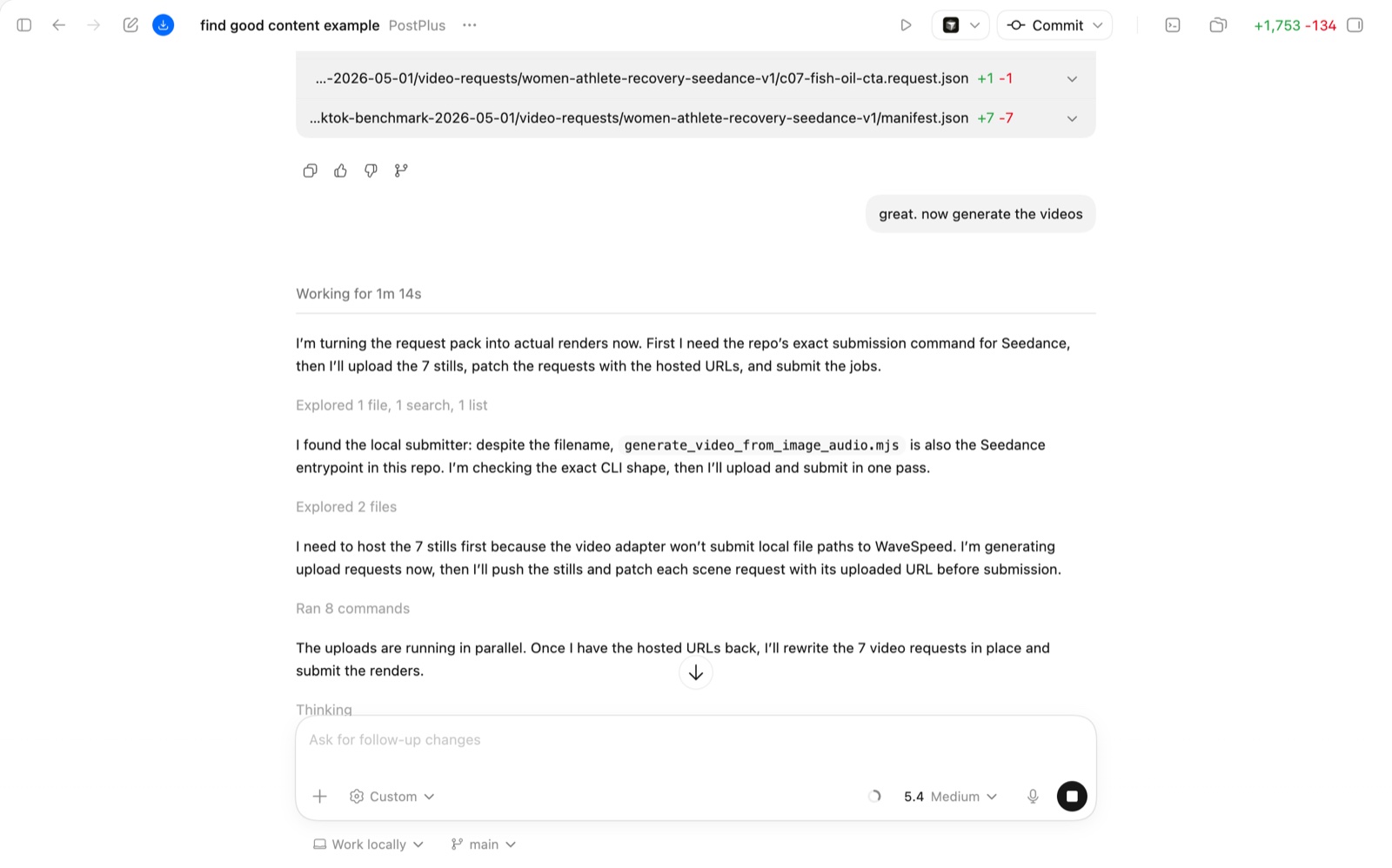
Generate images first when consistency matters. Images are cheaper to inspect and correct. Once each beat has a strong visual reference, video generation becomes more controlled.
Reference frames are optional, but they improve direction when you are trying to match a visual style, framing pattern, or pacing from a benchmark video.
One clip per beat makes the workflow easier to review, regenerate, and edit. Long all-in-one generations are harder to control and harder to repair.
PostPlus can prepare structured assets and edit instructions. Final stitching can be done in a lightweight editor when human timing and polish are still needed.